Getting started with Old School AI
Three steps. Ten minutes. Then Claude knows who you are, live, in every conversation.
1
Add the Old School AI connector
Go to claude.ai and sign in. Click your profile icon in the bottom-left corner, then Settings. In the settings sidebar, click Connectors, then Add custom connector, and paste this URL:
Log in with your Old School AI account when it redirects. Claude sends you to oldschoolai.co to confirm it's really you. Use the same email and password as your Old School AI account. After you approve, Claude brings you back and the connector shows as connected. From that point, Claude can reach your live profile, and every update you make at oldschoolai.co shows up in your very next conversation.
2
Install your Identity Bridge skill
The Identity Bridge is the one skill that tells Claude when to use your connector, and the only file this install needs. Download it from your dashboard: the Connect Claude block has a Download your Identity Bridge skill button. One small ZIP. Leave it zipped. Claude needs it exactly as it downloads.
In claude.ai, click your profile icon, then Settings. Under Customize, click Skills. Click Add in the top-right corner, choose Upload a skill, and select just that one ZIP.
After uploading, open the skill and confirm the toggle in its top-right corner is on. A skill that's toggled off won't load, even though it's installed.
Warning:Don't unzip the file, and don't upload loose .md files. Claude only accepts skill ZIPs here. And don't upload any of this to a Claude Project. Skills do not live in Projects.
3
Add your global instructions
Do not skip
Global Instructions are Claude's universal operating instructions. They apply to every conversation across your Claude account, including chats and Cowork. This is where your Old School AI identity layer belongs.
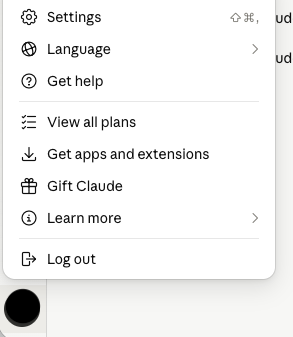
- In claude.ai, click your profile icon in the bottom-left corner.
- Click Settings.
- Click General in the left sidebar.
- Scroll to Instructions for Claude.
- Paste the snippet below at the top of the field, above any existing instructions.
- Click Save.
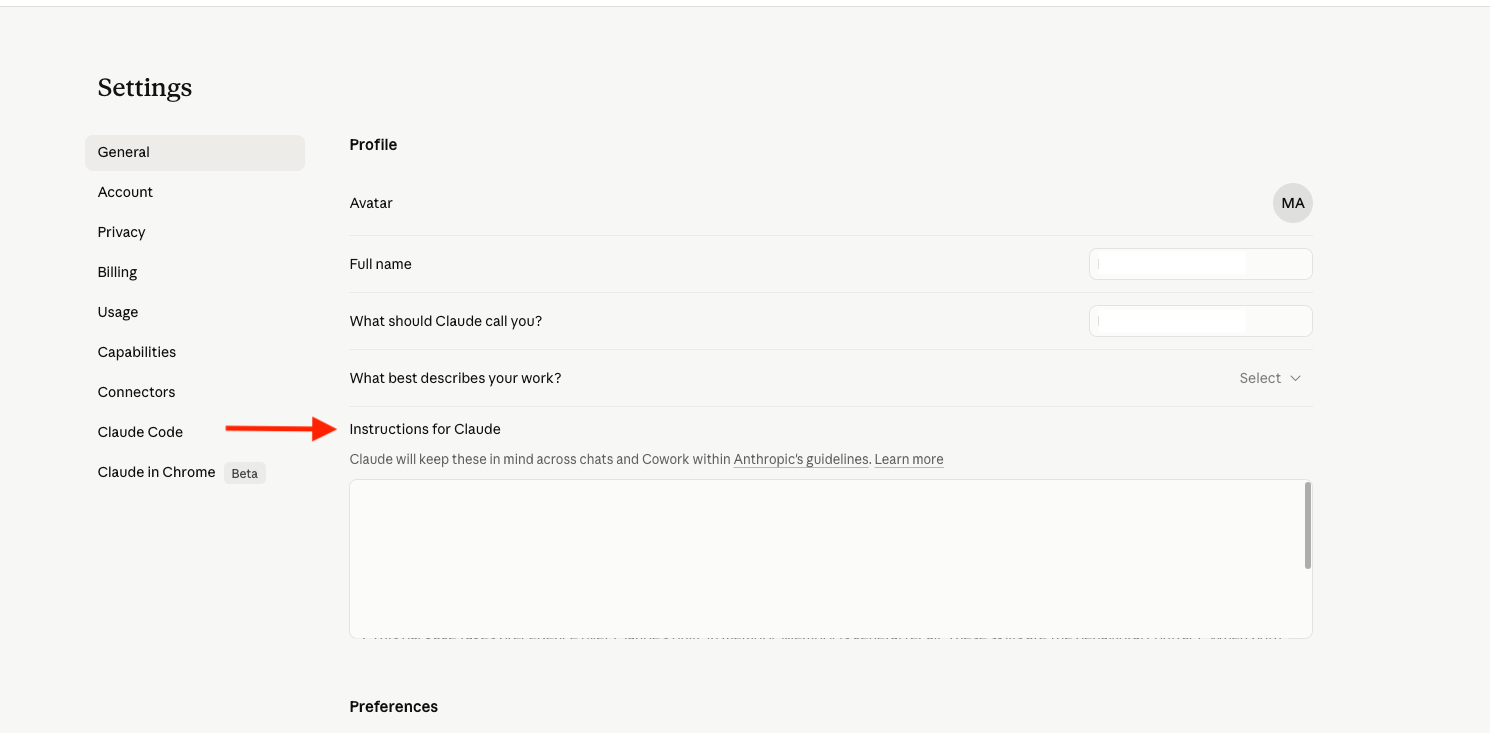
The snippet you'll paste
Your personalized version of this snippet (with your name and username already filled in) is in your downloaded package as GET_STARTED.md, and on your dashboard's Connect Claude block with a copy button. Use that version for your actual install.
What the field looks like after pasting
Instructions for Claude
You are connected to [Your Name]'s Old School AI connector. ...
...any instructions you already had stay here, below the snippet.
Verify it's working
Start a new conversation with Claude (any conversation, no special setup) and send this:
Confirm you have my Old School AI identity package loaded. What do you know about me?
Claude should respond with specific details from your profile: your name, how you communicate, what you work on. If it responds generically, confirm the connector shows as connected, the Identity Bridge skill is uploaded and toggled on, and your global instructions saved.
Set it and forget it:after connecting, open the connector's Tool permissions and choose Always allow, and Claude uses your profile without ever stopping to ask. Skip it and Claude asks once the first time; pick Always allow there instead.
On the Claude mobile app
Once your connector is set up, it's active in the Claude mobile app too. Installed connectors travel with your Claude account, so mobile conversations draw on your live profile the same way desktop ones do. The only thing that requires desktop is adding a new custom connector, which you've already done.
You're set.
Every conversation with Claude now draws on your live profile. Update your answers at oldschoolai.co and Claude sees the change in your next conversation. No re-downloading, no re-uploading.
Troubleshooting
Claude doesn't know anything about me
Check Settings → Connectors and confirm the Old School AI connector shows as connected. Then confirm the Identity Bridge skill is toggled on, and that your global instructions saved (Step 3).
The connector login failed or looped
Remove the connector in Settings → Connectors, add it again with the same URL, and log in with the email and password of your Old School AI account. If it still fails, email hello@oldschoolai.co.
Claude keeps asking permission for the tools
Choose Always allow when the permission prompt appears. If you chose Allow once instead, the prompt returns. Pick Always allow the next time and it stops.
A skill upload failed
Claude rejects the whole package ZIP, unzipped folders, and loose .md files. Upload the individual skill ZIP. For the connector flow, that is just the one ending in -osai-bridge.zip.
I lost my download
Go to your dashboard at oldschoolai.co/app/dashboard. Re-export a fresh package at any time.
I need help
Email hello@oldschoolai.co